As from Rs. 210
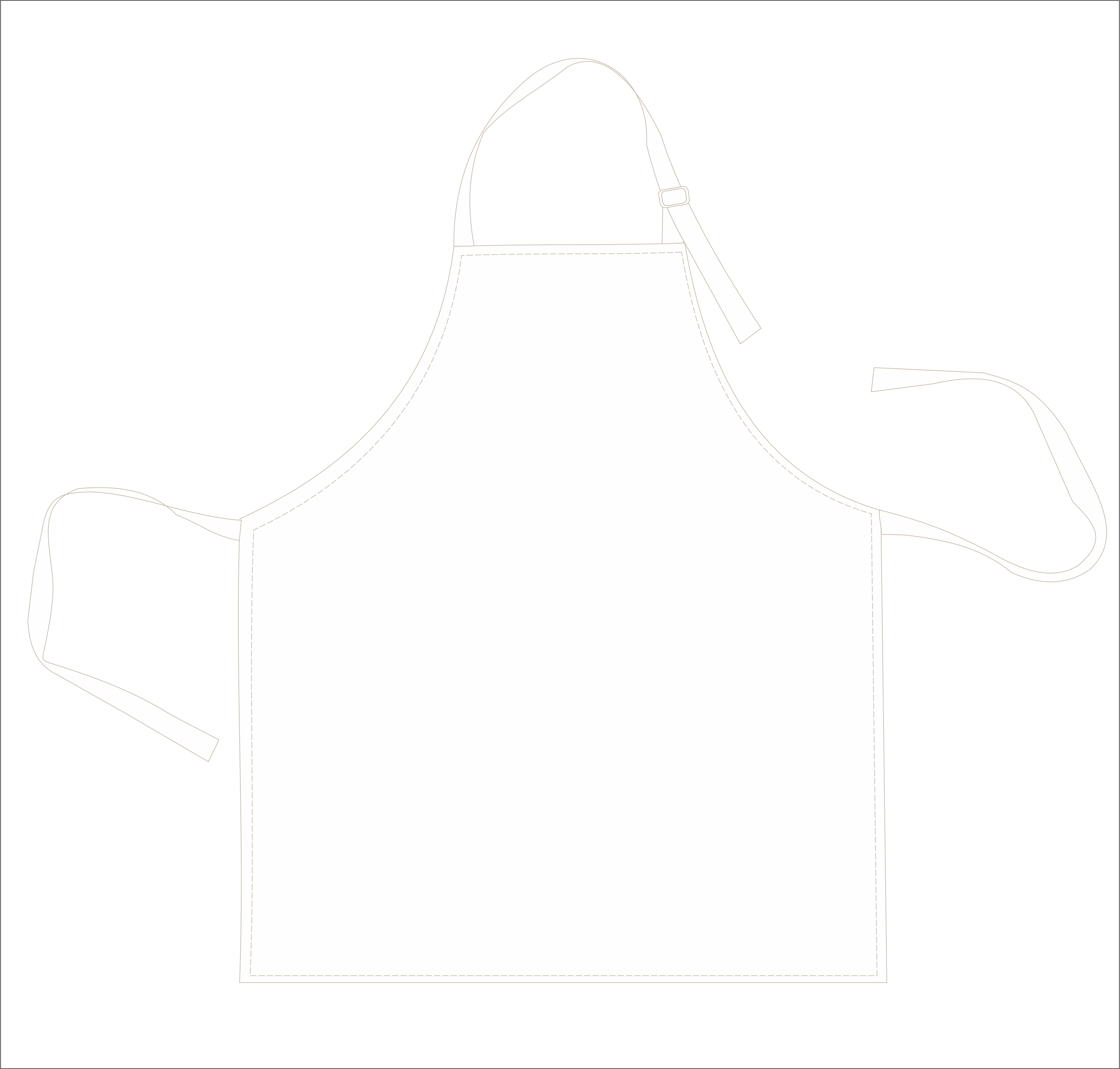
You have now chosen to customise our aprons samples. You can now proceed to the next step and download our templates.
On this page, you can now download png and jpg templates of our blank aprons canvas and proceed to the next step for customisation instructions.
Once you have your logo or your designs ready and our template downloaded, you can now open the Canva website where you will be able to place the designs on top of the template
Once you have your design ready on Canva, you can download it and come back to this page and upload your design to submit to our sales team for review and quotes.

To download our apron samples, please follow these simple steps:
1. Locate the download now button on this page.
2. Click on the button.
3. Depending on your browser, a pop-up window may appear asking you to confirm the download. Click “Save” or “OK”.
4. The samples are available in two formats: PNG and JPG. Make sure to choose the format you prefer.
5. Once downloaded, the samples will be saved to your computer or device.
If you have any issues downloading the samples, please don’t hesitate to contact us for assistance.
To start customizing your design, open Canva and select the design type you need. Once you have done that, you can upload the downloaded sample into Canva. You can then edit the uploaded sample by changing the text, images, colors, or any other element to suit your preferences. You can also add new elements to the design.
If you want to start with a blank slate, you can create a new design and add elements from the downloaded sample to your canvas.
When you’re happy with your design, save it and download it as a PNG, JPG or PDF. You can then use your final custom design for the next step.
To upload your final design on our quotation form, please follow these simple steps:
1. Look to the right of your screen where you will see a section labeled “Upload Final Design.”
2. Click on the “Choose File” button, and select your design file from your computer.
3. Once you have selected the file, click the “Upload” button.
4. Your design will now be uploaded to our system and attached to your quote request.
Please note that we accept a wide range of file formats including JPEG, PNG, and PDF. If you have any issues uploading your design, please reach out to our customer support team for assistance.
Prestige Lokal is a reputable company that specializes in delivering exceptional printing and embroidery services for various types of garments and accessories.
© 2023 All rights reserved